
Clover Release! 🚀 v3.15.0
This release improves workflow reliability, simplifies task management, and modernizes parts of the Clover interface. Highlights include explicit handling of declined e-signatures, clearer workflow configuration. Additional updates improve contact visibility, streamline workflow creation, simplify dashboard task view and modernize legacy functionality.
At a glance
- Explicit decline handling for e-signature steps
- Automatic Decline Resolution tasks for declined signatures
- Required Input BPO type for workflow design
- Simplified dashboard showing received tasks only
- Improved workflow publishing validation for inactive users
- File upload steps now accept a single file
- Contact phone numbers visible in contact lists and chips
- Legacy e-sign step deprecated
- Task creation interface simplified
- Updated Terms of Use
Task and workflow improvements
E-sign decline handling
E-signature steps now explicitly support declined signatures and provide a structured process for resolving them. When a signer declines a request, the workflow no longer remains silently blocked. Instead, Clover records the decline, closes all pending signature requests, and creates a follow-up task to resolve the situation.
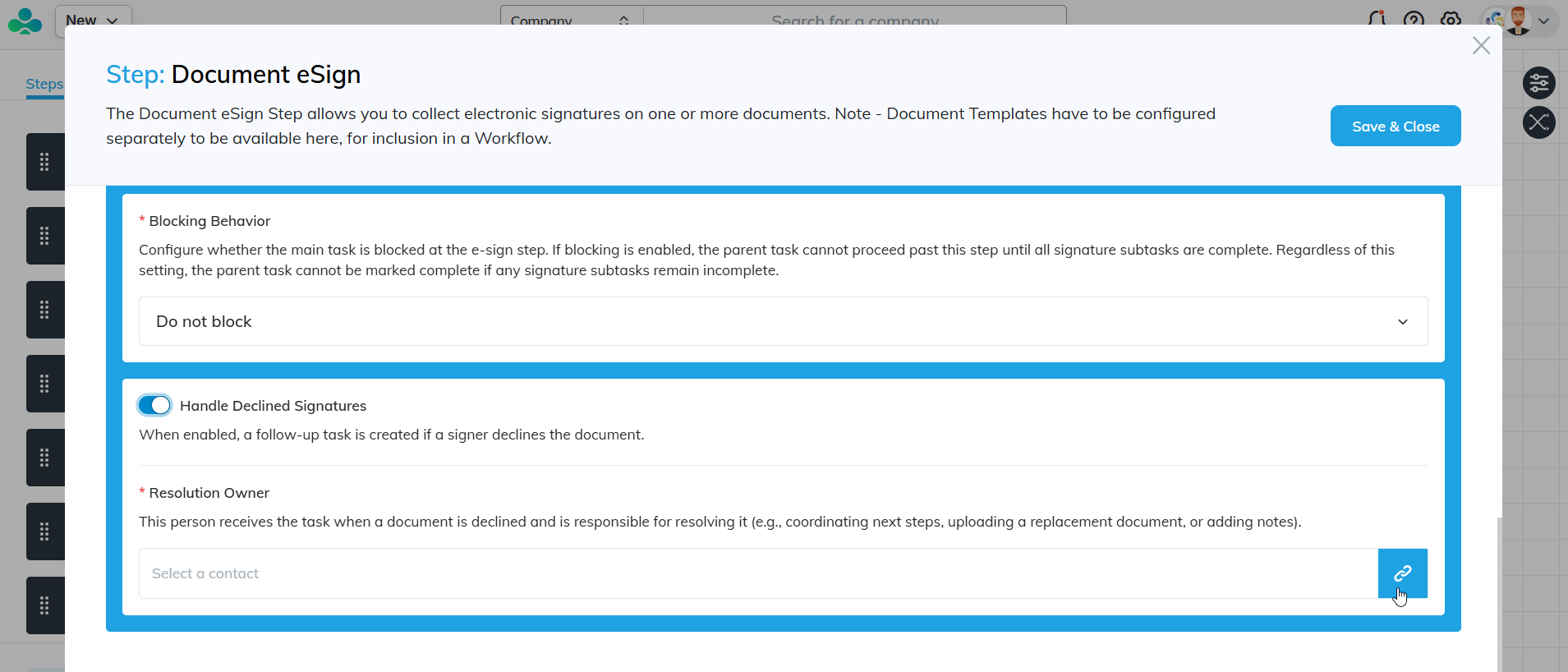
When a signer clicks Decline in the embedded Dropbox Sign flow, the signer’s e-sign task is marked Declined, and any other pending signer tasks for that step are automatically closed with the status Declined by another signer. The workflow step then transitions to Waiting for Decline Resolution.

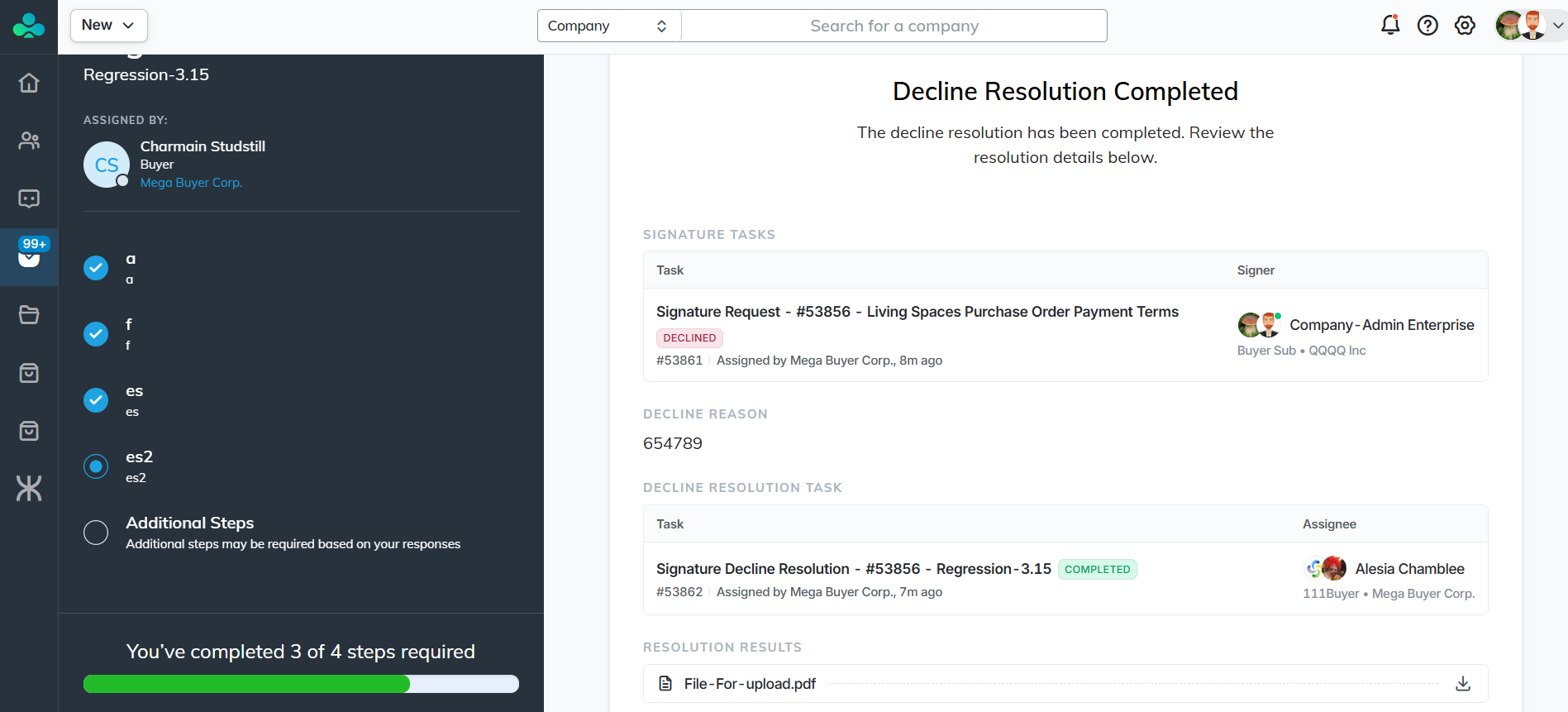
Clover automatically creates a Decline Resolution task assigned to the configured user or team. The task contains the original document, any partially signed documents returned by Dropbox Sign, the list of signers and their statuses, and the decline comment.
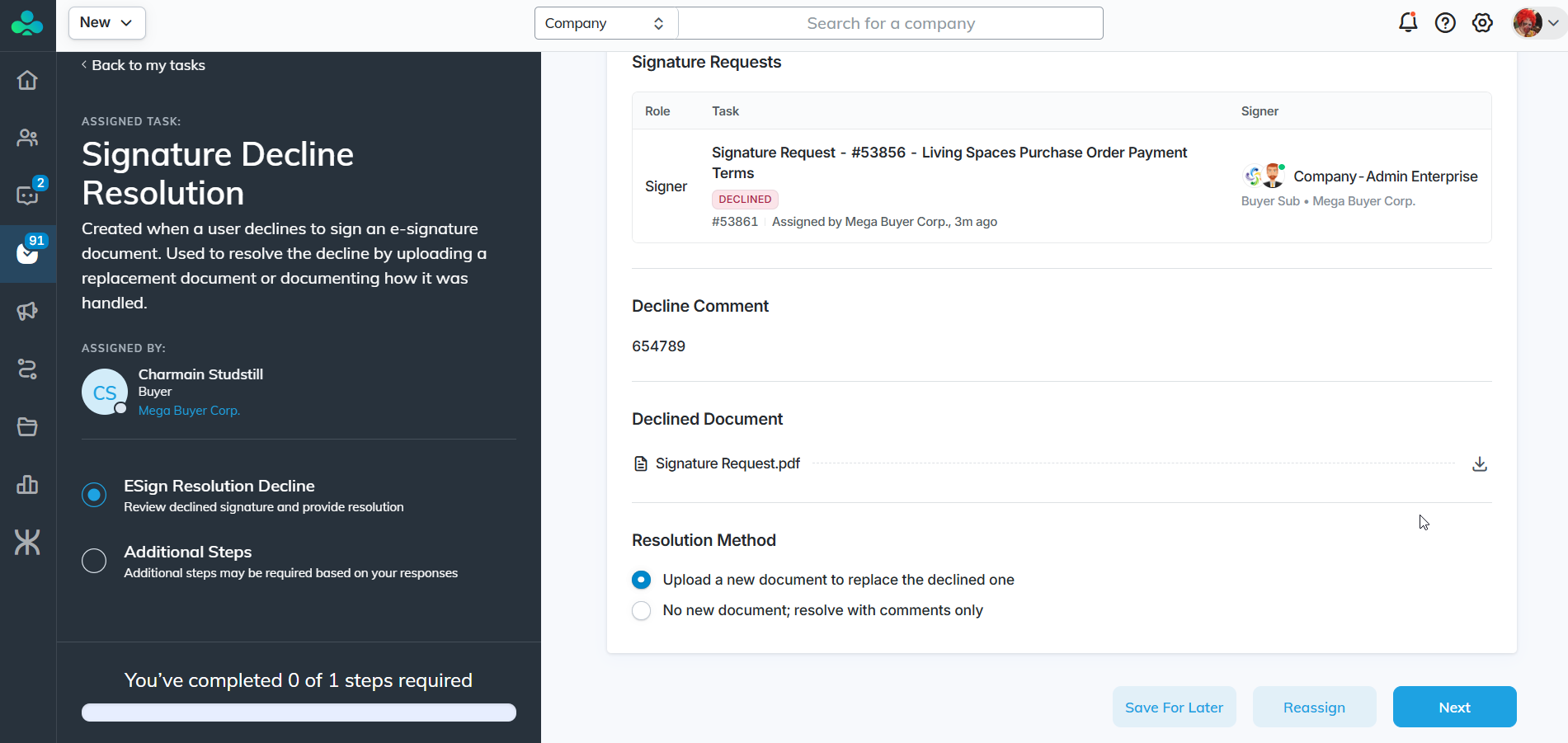
The assignee may upload a replacement document or close the request without replacement, for example when a signature requirement is waived. A comment describing the resolution is required. Once completed, the e-sign step is marked Resolved (by decline) and the workflow continues according to its configuration.
Blocking and non-blocking decline behavior
Workflows may treat e-sign steps as either blocking or non-blocking when a decline occurs.
In blocking mode, the workflow cannot advance until the Decline Resolution task is completed.
In non-blocking mode, the workflow may continue past the e-sign step. However, the workflow cannot finish while any Decline Resolution tasks remain open. If a user attempts to finish the workflow early, Clover displays a message explaining that the workflow cannot complete until the assigned resolution task is finished.
This ensures every declined signature is reviewed and addressed before the task closes.
Multi-signer decline support
E-sign steps supporting multiple signers now handle declines consistently. Each signer receives a separate child task. If any signer declines, all pending signature tasks are closed and a single Decline Resolution task is created for the step instance.
If another signer already signed before the decline occurred, the partially signed document is preserved and available within the resolution task for review.
Workflow configuration improvements
Required Input BPO type for workflows
Workflows now require an Input BPO Type when being designed. This ensures that workflows can only be executed with compatible business process objects and allows downstream steps to reliably reference the correct fields.
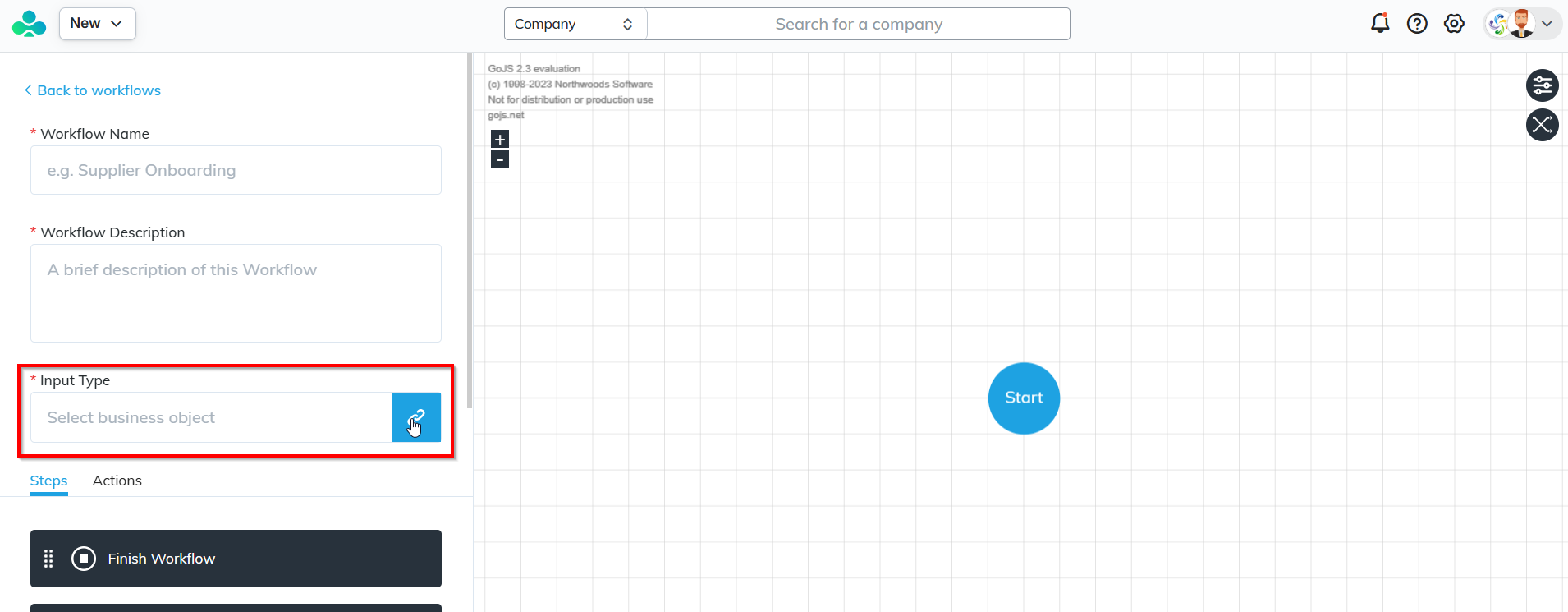
When creating a workflow in the designer, the Input BPO Type selector is visible and required. The dropdown lists only the BPO types enabled for the tenant.
The selected type is stored in the workflow metadata and is automatically restored when reopening the workflow in the designer.
The chosen Input BPO Type also determines which fields are available when configuring steps such as Custom Forms, Decision actions, Set Field Value steps, eSign steps, etc.. Field selectors in these steps now show only fields belonging to the selected BPO type and group them according to their schema sections.
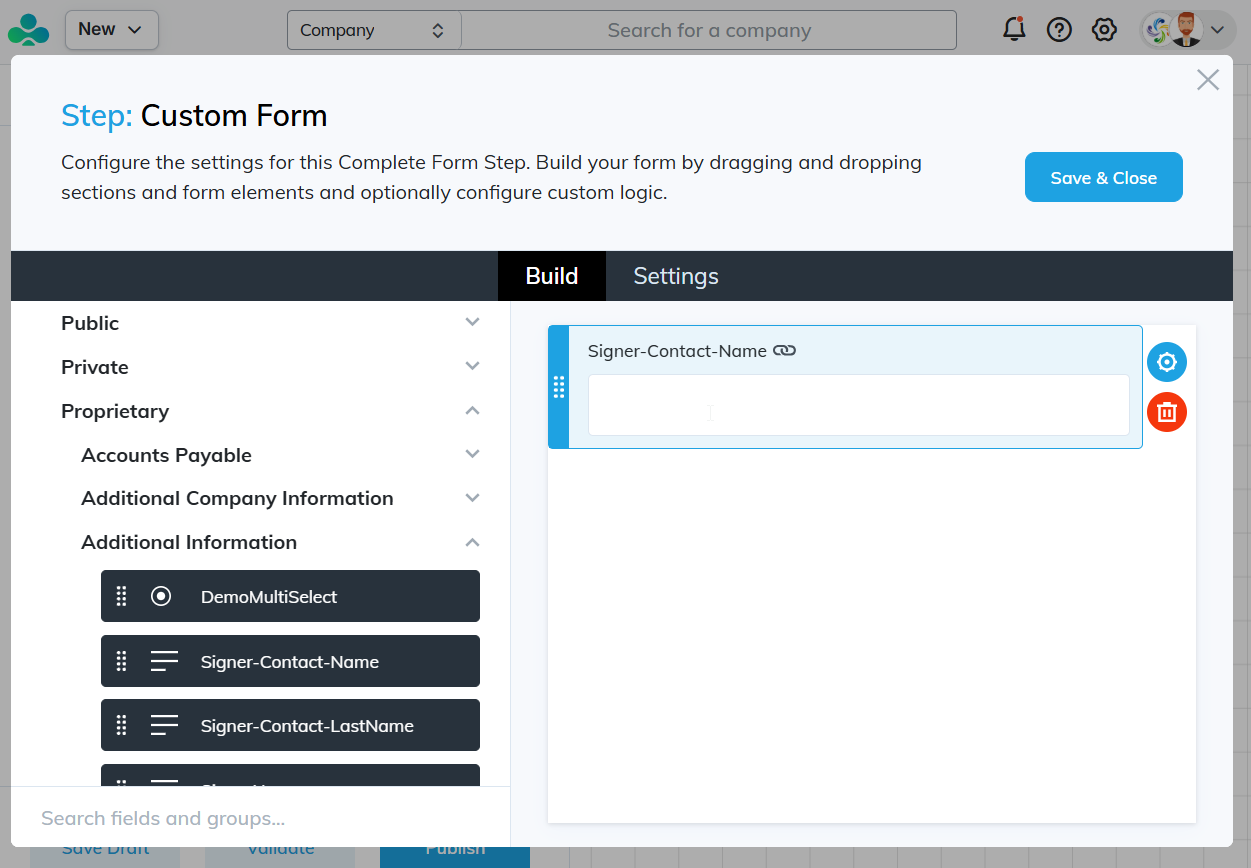
If the Input BPO Type is changed after steps have already been configured, the designer displays a warning explaining that existing field bindings may become invalid. After confirming the change, affected steps must be updated before the workflow can be published.
Publishing a workflow without selecting an Input BPO Type is no longer allowed.
Improved validation for inactive approval users
Publishing workflows with inactive users is now handled more clearly.
Previously, inactive users were hidden from the approver selection list in the Data Approval step, even if they had already been assigned earlier. This could cause publishing to fail with confusing validation errors while preventing users from removing the inactive approver through the interface.
Clover now provides clearer validation messaging if inactive approvers exist in a workflow configuration. The system also allows authors to resolve the issue by identifying and removing inactive users from the approval step configuration before publishing.
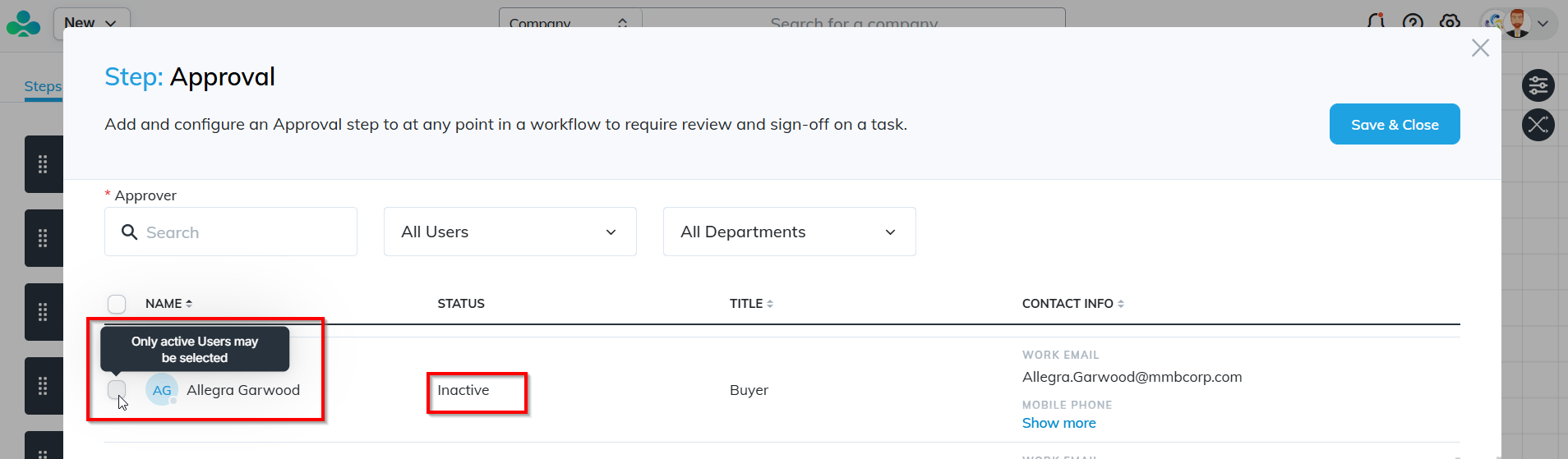
This prevents confusing publishing failures and makes the issue easier to diagnose and fix.
Legacy e-sign step deprecated
The legacy e-sign step has been deprecated in favor of the current e-sign workflow step implementation.
Existing workflows will continue to function, but new workflows should use the modern embedded e-sign step to ensure compatibility with the latest document handling and signature management features.
Interface improvements
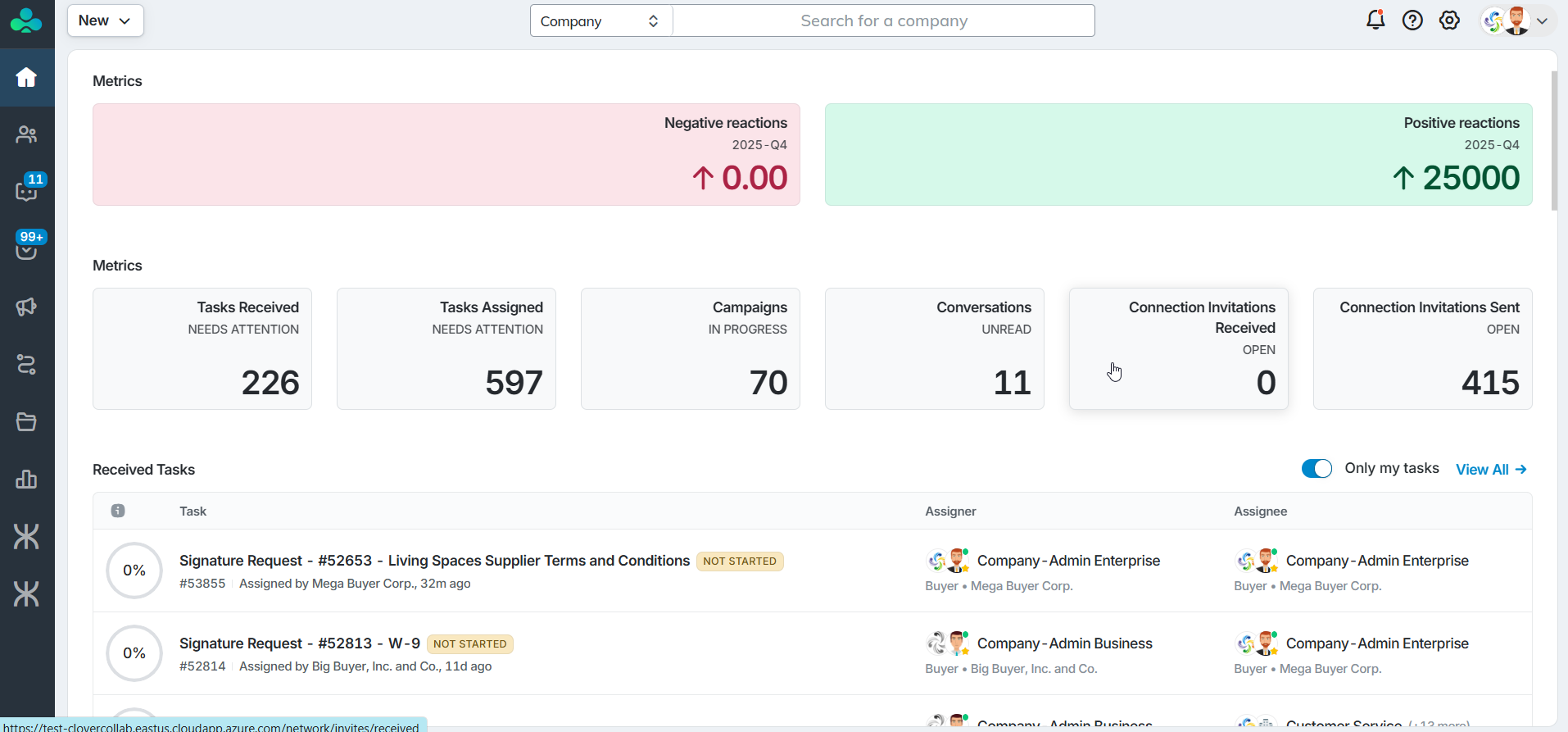
Simplified dashboard task view
The dashboard task view has been simplified to reduce visual complexity. Users who need to view all tasks can use the View All Tasks link, which opens the full tasks page.
File upload step now accepts a single file
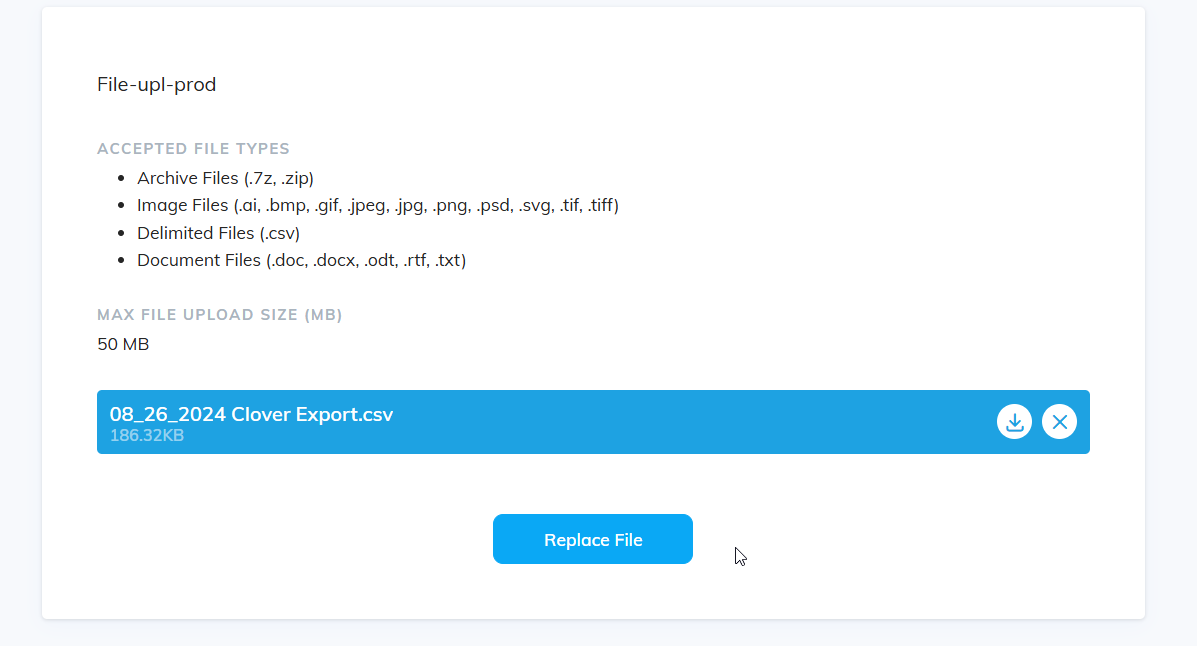
The File Upload step in task now restricts uploads to a single file. Previously, multiple files could be uploaded in the same step.
If workflows require multiple documents, authors can chain several file upload steps together in sequence. This change simplifies workflow logic and ensures that each uploaded document is clearly associated with a specific workflow step.
Task creation simplified
The task creation interface has been streamlined. The New Task button has been removed from the top panel, and the Create button has been renamed to New for clarity. When creating a task, users are no longer asked to select a workflow type. The workflow selection modal now opens directly.

Phone numbers visible in contact lists
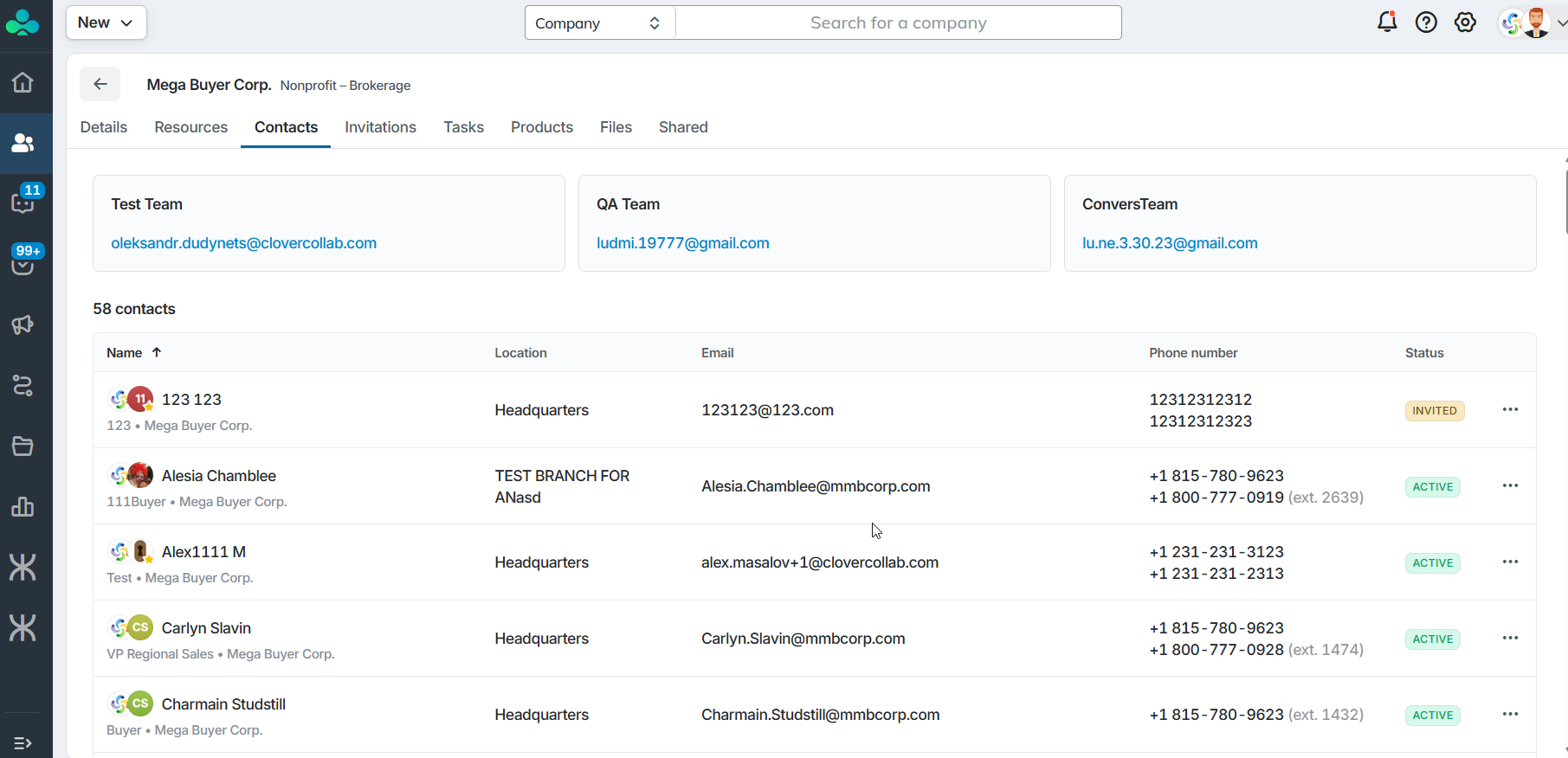
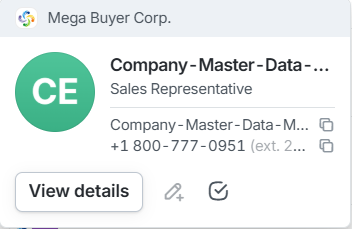
Phone numbers are now displayed in the Contact list within the company profile and in the contact chip UI. This makes it easier to quickly access and verify contact information without opening the full contact record.
Policy updates
Terms of Use update
The Clover Terms of Use have been updated. Users may be prompted to review and accept the updated terms when accessing the platform.